> For the complete documentation index, see [llms.txt](https://docs.augelab.com/llms.txt). Markdown versions of documentation pages are available by appending `.md` to page URLs; this page is available as [Markdown](https://docs.augelab.com/augelab-studio-interface/detailed-look.md).
# Detailed Look
AugeLab Studio User Interface
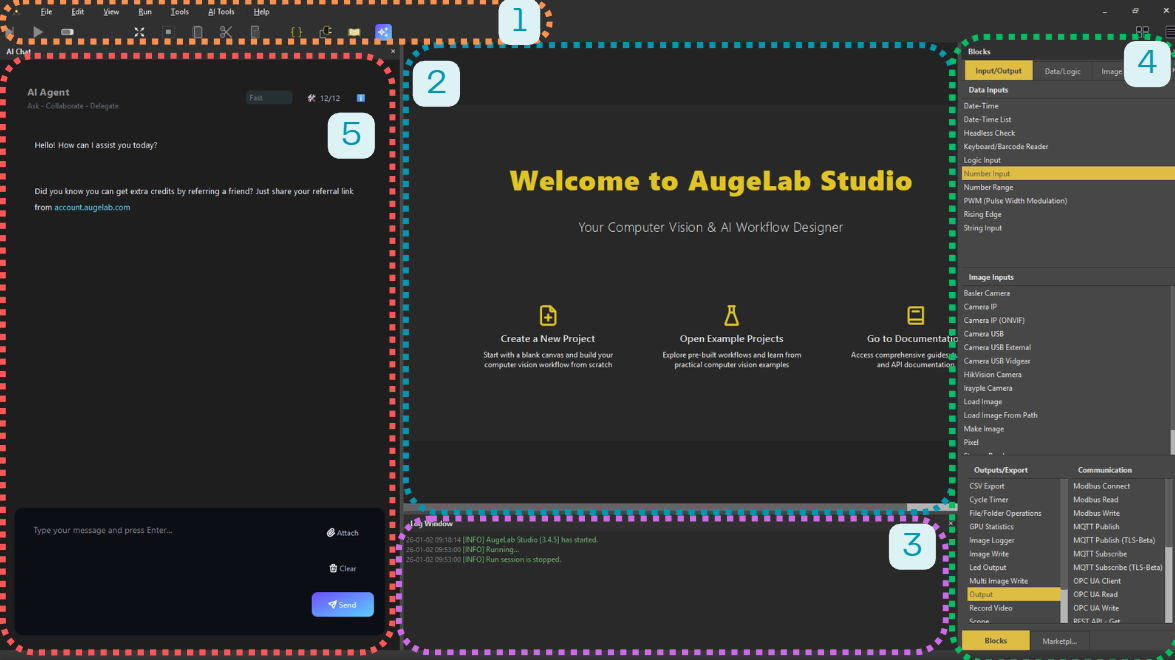
Let's dive in a little bit deeper on the four main sections of AugeLab Studio:
## 1. Menubar

The Menubar is located at the top of the interface and provides access to essential project operations.
You can save, load, run and analyze scenarios. Also, AI utilities are provided here.
The detailed explanation will be provided in the upcoming pages.
## 2. Scenario Area

The Scenario Area is the central workspace where you design and build your image processing workflows. In this area, you can drag and drop different blocks to create a sequence of operations.
Each block represents a specific function or algorithm, and you can connect them to form a complete processing pipeline.
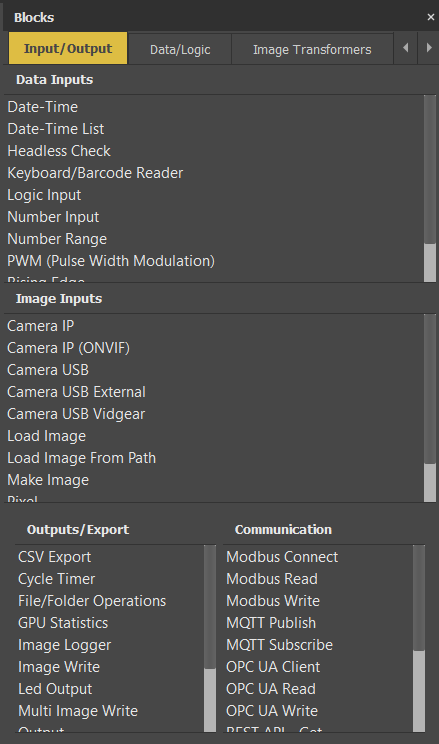
## 3. Blocks Window
Blocks Window
The Blocks Window is located on the left side of the interface and contains a collection of blocks that you can use in your workflows.
Everything you need when building your projects resides here.
You can simply drag and drop blocks from the toolbar into the Scenario Area to add them to your workflow.
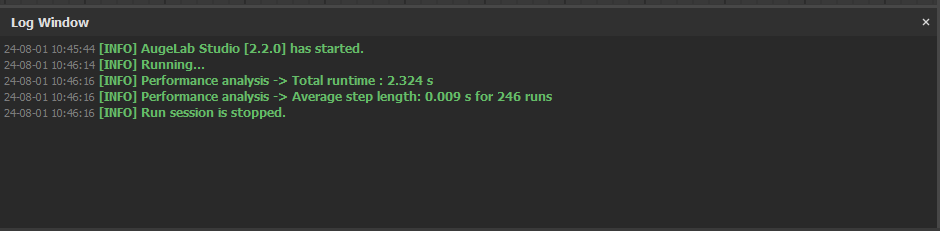
## 4. Log Window
Log Window
The Log Window is located at the bottom of the interface and displays real-time logs, warnings, and error messages related to your workflows.