# Scenario Area

Let's explore what we can do with the scenario area.

## Create New Scenario File <a href="#create-new-scenario-file" id="create-new-scenario-file"></a>

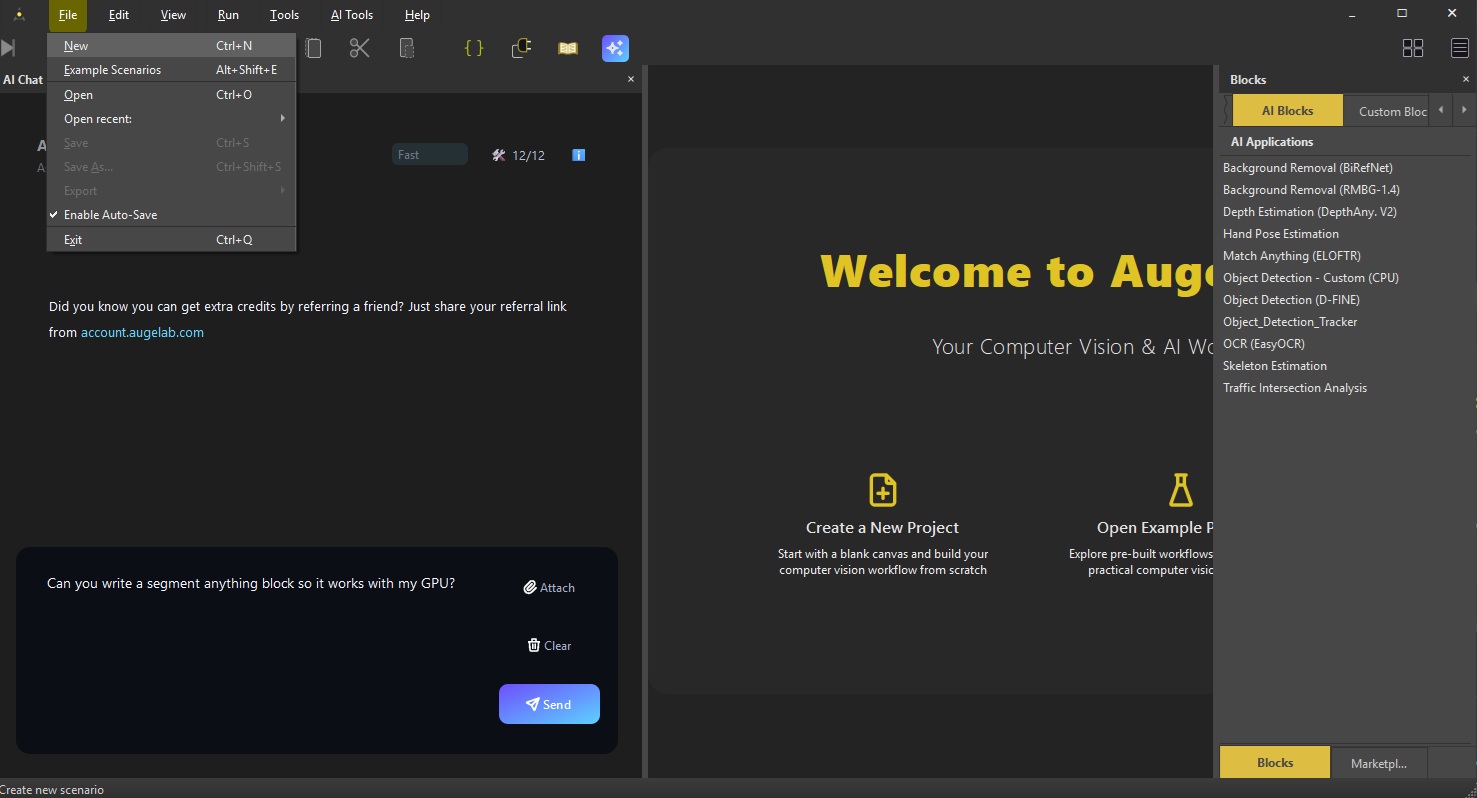
Create a new scenario file from **File➡️New**:

<figure><img src="/files/kFNBwYrz2xOgJrcEgSL0" alt=""><figcaption></figcaption></figure>

## Adding Function Blocks <a href="#adding-function-blocks" id="adding-function-blocks"></a>

After creating new project you can drag\&drop function blocks from the right section.

You can drag and drop function blocks with mouse to an emptry scenario.

![](/files/B74IGBtSbjA4OeOBGJt0)

## Connecting Function Blocks <a href="#connecting-function-blocks" id="connecting-function-blocks"></a>

You can connect output and input sockets together:

![](/files/PMtrB29YyEMhOiIIvmRO)

## Search Function Blocks <a href="#search-function-blocks" id="search-function-blocks"></a>

Also you can double click on the empty grid area and search through all function blocks.

![](/files/SWQyJTZwBI6nK2BTIlCh)

You can use keyboard up-down arrow buttons and press enter or click on an item you'd like to add to the scenario.

## Copy-Cut-Paste-Remove <a href="#copy-cut-paste-remove" id="copy-cut-paste-remove"></a>

You can also copy-cut-paste-remove selected function blocks and connections with the contect menu by right clicking:

![Selected items will be highlighted](/files/j2QE4yxbbYK2vtwQrMt4)

or you can use keyboard shotcuts:

* `Ctrl-c`: Copy
* `Ctrl-x`: Cut
* `Ctrl-v`: Paste
* `Del`: Remove

## Add Informative Text <a href="#add-informative-text" id="add-informative-text"></a>

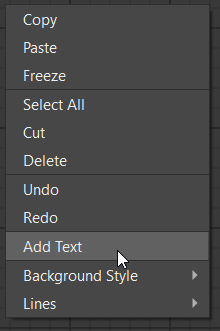
<figure><img src="/files/KRKClTgosh01lFxptr5N" alt="" width="160"><figcaption></figcaption></figure>

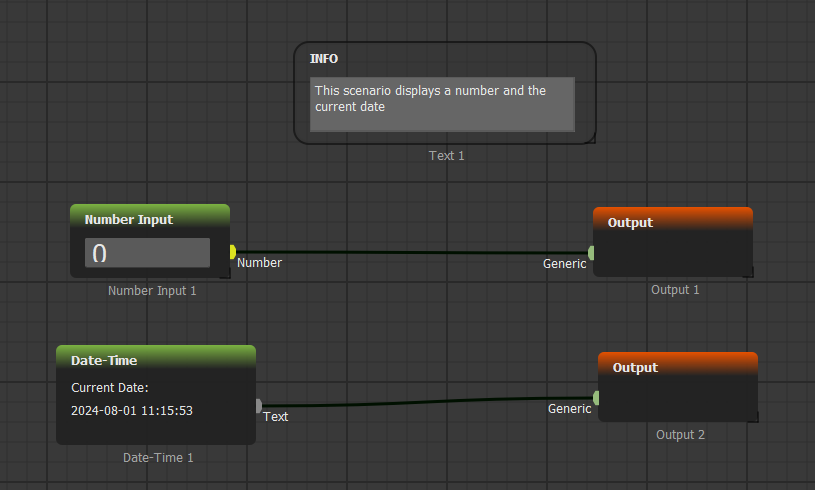
By opening the context menu and clicking `Add Text`, you can add informative texts on a scenario:

<figure><img src="/files/XO0sAEX87nQ2jhJF5Cx0" alt="" width="560"><figcaption></figcaption></figure>

## Change Background Style <a href="#change-background-style" id="change-background-style"></a>

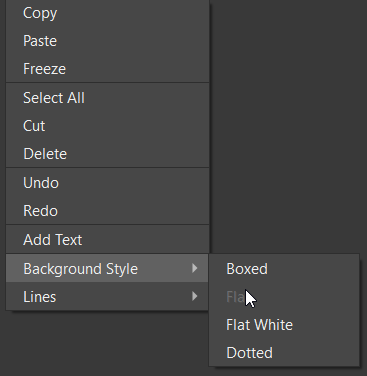
You can change the background style:

<figure><img src="/files/A30I4GW0KRHMOO0yQ3P2" alt="" width="560"><figcaption></figcaption></figure>

## Freeze Controls on Blocks <a href="#freeze-controls-on-blocks" id="freeze-controls-on-blocks"></a>

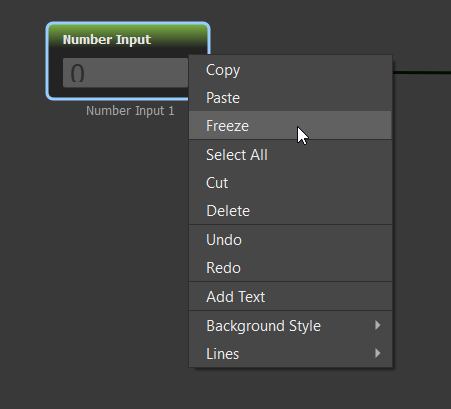
You can freeze controls on a function block to make sure no accidental changes happen with `Ctrl+F`:

<figure><img src="/files/XEoIeDpDQDsj6mdZH9yt" alt="" width="560"><figcaption></figcaption></figure>

That is all! Now, you can have a simple tour on the menubar.

---

# Agent Instructions: Querying This Documentation

If you need additional information that is not directly available in this page, you can query the documentation dynamically by asking a question.

Perform an HTTP GET request on the current page URL with the `ask` query parameter:

```
GET https://docs.augelab.com/augelab-studio-interface/scenario-area.md?ask=<question>
```

The question should be specific, self-contained, and written in natural language.
The response will contain a direct answer to the question and relevant excerpts and sources from the documentation.

Use this mechanism when the answer is not explicitly present in the current page, you need clarification or additional context, or you want to retrieve related documentation sections.