> For the complete documentation index, see [llms.txt](https://docs.augelab.com/llms.txt). Markdown versions of documentation pages are available by appending `.md` to page URLs; this page is available as [Markdown](https://docs.augelab.com/getting-started/first-look.md).
# First Look
After the installation is finished, the shortcut to run AugeLab Studio will be created at your desktop or your start menu. Go ahead and run the application.
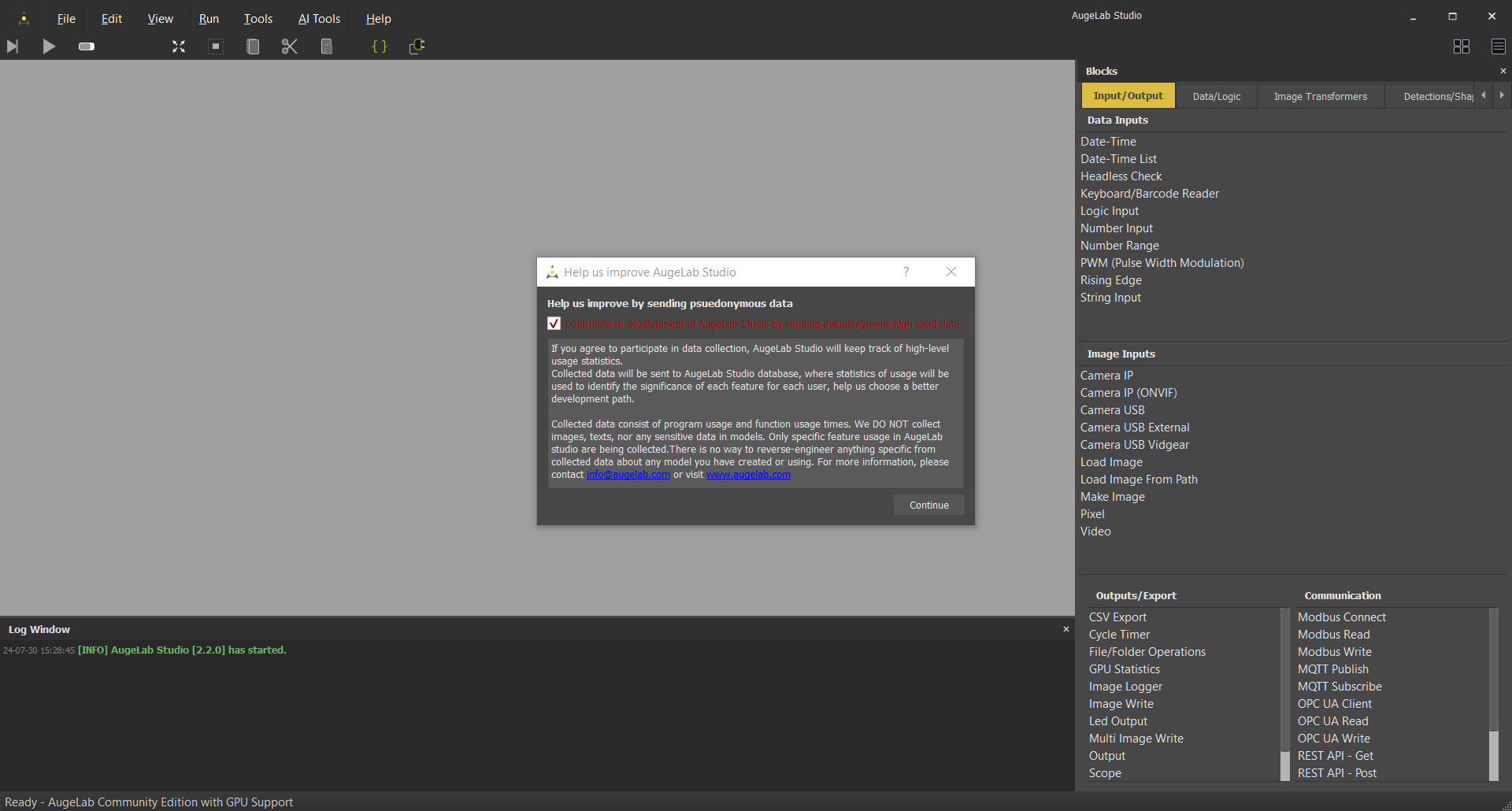
At first, you'll see the main dashboard and a several windows:
Usage Statistics
First prompt is to ask for usage statistics. These statistics help us develop better features for you, accepting it helps us a lot!
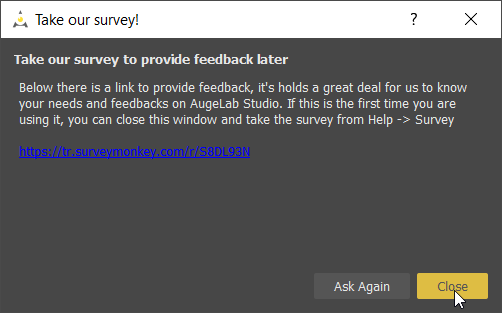
Next, you'll see the survey page. You can take this survey any time you want from the 'Help' section.
Following that, you'll see two new windows that shows updated features and example projects.
You may close them since they all are accessible through the menubar.