> For the complete documentation index, see [llms.txt](https://docs.augelab.com/llms.txt). Markdown versions of documentation pages are available by appending `.md` to page URLs; this page is available as [Markdown](https://docs.augelab.com/getting-started/installation-and-licensing.md).
# Installation
Choose the installation path for your operating system. After installation, continue with [Activation](#activation).
{% tabs %}
{% tab title="Windows" %}
Download AugeLab Studio from [account.augelab.com](https://account.augelab.com), then run `AugeLab_Studio.exe`.
{% hint style="info" %}
Before you start:
* Run the installer with elevated privileges.
* Keep a stable internet connection during installation and activation.
{% endhint %}
{% stepper %}
{% step %}
## Start the installer
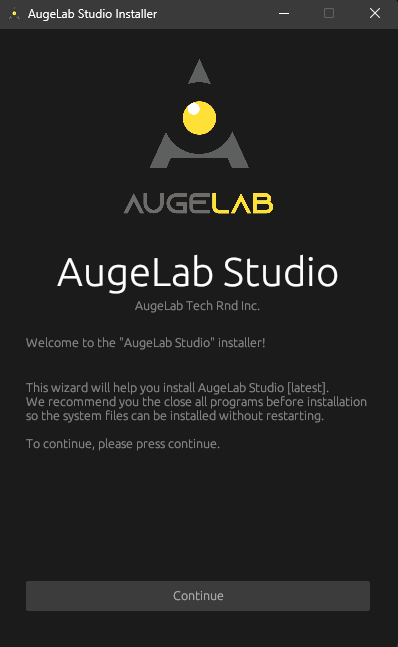
Run `AugeLab_Studio.exe`.
Setup wizard
Click **Next**.
{% endstep %}
{% step %}
## Accept the user agreement
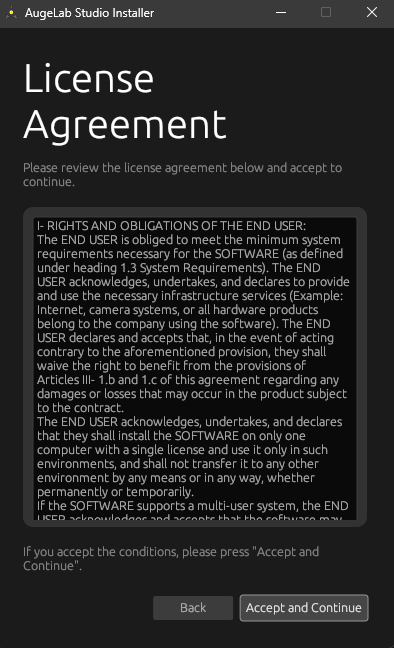
User agreement
Read the agreement, then click **Agree**.
{% endstep %}
{% step %}
## Choose install options
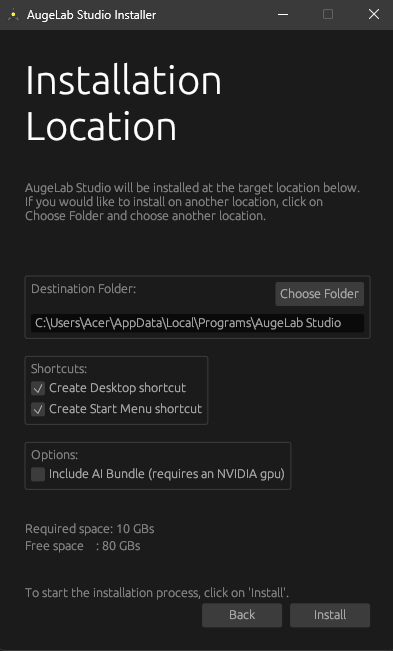
Install options
By default, AugeLab Studio is installed for the current user. You can change the install mode or install multiple instances from this screen.
### GPU acceleration / CUDA
If you have a compatible NVIDIA GPU and want GPU acceleration, enable the GPU/CUDA option when it is shown. AugeLab Studio ships the CUDA runtime components it needs. For hardware details, see [system requirements](/introduction/system-requirements.md).
{% endstep %}
{% step %}
## Install and launch
Click **Install**. The installation may take up to 5 minutes depending on your hardware and internet connection.
When installation is complete, start AugeLab Studio from the desktop shortcut or Start menu.
{% endstep %}
{% endstepper %}
{% endtab %}
{% tab title="Linux" %}
Download the Linux installer script from [account.augelab.com](https://account.augelab.com), then run it from a terminal.
{% stepper %}
{% step %}
## Make the installer executable
```bash
chmod +x installer.sh
```
{% endstep %}
{% step %}
## Install Studio
Use the same installer flow for Linux x86-64 and ARM64:
```bash
./installer.sh --ui
```
For AI/GPU support, make sure the NVIDIA driver is installed and visible on the host, then run:
```bash
./installer.sh --ui --ai
```
AugeLab Studio ships the CUDA runtimes it needs. On Jetson devices, use the standard JetPack/NVIDIA driver stack for your device.
{% endstep %}
{% step %}
## Launch or uninstall
The installer creates the `augelab_studio` launcher and desktop entries when UI mode is selected.
To uninstall:
```bash
./installer.sh --uninstall
```
{% endstep %}
{% endstepper %}
{% endtab %}
{% endtabs %}
## Activation
{% stepper %}
{% step %}
## Open AugeLab Studio
Run the application. The activation window will appear.
Activation window
{% endstep %}
{% step %}
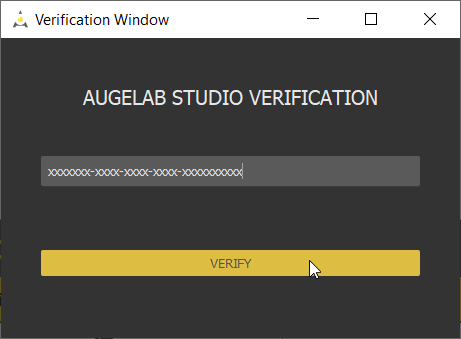
## Enter your verification code
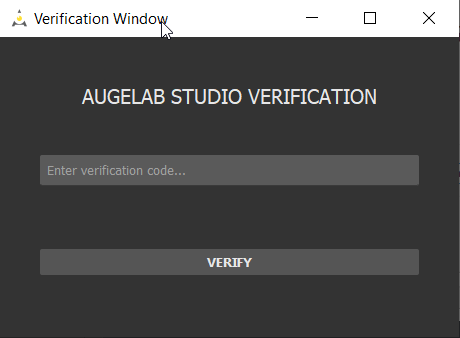
Copy the code you saved during [signing up](/getting-started/signing-up.md), then paste it into **Enter verification code...**.
Verification code entry
{% endstep %}
{% step %}
## Verify
Click **Verify**. After the confirmation message appears, AugeLab Studio is ready to use.
{% endstep %}
{% endstepper %}
{% hint style="info" %}
Below, you may find the license and user agreement.
LICENSE AND USER AGREEMENT
## \*\*License\*\*
Important: Carefully read the rights and obligations set forth in this license agreement. During installation, you will be asked whether you accept these terms. If you do not agree, the software will not be installed on your computer. Installing the program on your computer indicates that you accept the terms of the agreement. This agreement for the AugeLab Studio Software (SOFTWARE) is a legal agreement between AugeLab and the END USER (natural or legal). By installing the SOFTWARE, you accept the terms of this agreement. If you do not accept the agreement, you cannot install and use the SOFTWARE.
{% hint style="info" %}
The software you downloaded is the Community version. It has all the features, but the runtime is limited to 15 minutes. After 15 minutes, the software stops. You can get the software to run state again with the Run button. **This license type is not suitable for commercial use**. For commercial use license, please contact .
{% endhint %}
## \*\*RIGHTS AND OBLIGATIONS OF THE END USER:\*\*
1\. The END USER is responsible for meeting the minimum system requirements for the SOFTWARE (defined under the heading 1.3 System Requirements). It accepts, undertakes and declares to use the infrastructure services required for the operation of the SOFTWARE (Example: Internet, camera system or all hardware products belong to the company that will use the software). The END USER declares and accepts that he/she knows that the right to benefit from the provisions of clause III-1.b, 1.c of this contract will cease to exist due to the damages and losses that may occur in the product subject to the contract due to the violation of the above written provision.
2\. The END USER accepts, undertakes and declares that he will install the SOFTWARE on a single computer with a single license and use it only in these environments, and will not transfer it to another environment permanently or temporarily by any means or in any way.
3\. END USER; The SOFTWARE declares and accepts that if it supports a multi-user system, it can be installed and run on more than one computer in the network, that it must obtain a license for each computer in the network, and that a SOFTWARE license cannot be shared and the SOFTWARE cannot be used on different computers at the same time.
4\. If the SOFTWARE is used for multiple users; The END USER has the right to install the maximum program that can be run on other computers as much as the number of clients specified when obtaining the license..
5\. The END USER accepts, undertakes and declares that s/he will use the community version for the registration number and duration determined by AugeLab, and not for any reason, for commercial or professional purposes or other profit-making reasons.
6\. END USER
a. Will not reproduce the SOFTWARE and documentation other than those permitted by this License Agreement, will not decompile or recompile the SOFTWARE,
b. shall not distribute, lend, rent, sell, or transmit the Premium version of the SOFTWARE to any other person, without the written consent of AugeLab,
c. It accepts, declares and undertakes that it will not change or adapt the SOFTWARE and its documentation or create inspired works based on the SOFTWARE and documentation.
7\. AugeLab Image Processing and Industrial Automation Technologies Industry Inc. reserves all rights on this software. The right holder has the right to make paid features or change the licensing method and price in the next SOFTWARE versions or on this version.
{% endhint %}