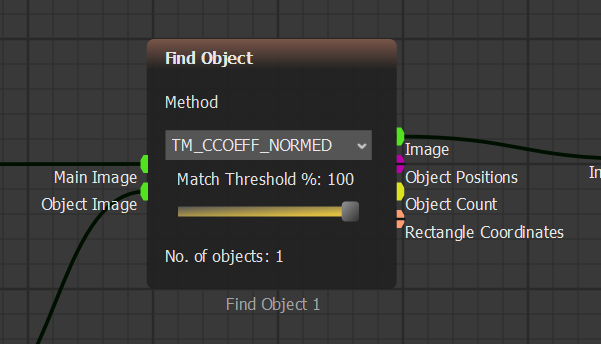
Find Object match threshold
 *Run Step*. You should see the detected golf ball inside a red box in **Show Image**.

{% endstep %}
{% step %}
### Test continuous detection
Click
*Run Step*. You should see the detected golf ball inside a red box in **Show Image**.

{% endstep %}
{% step %}
### Test continuous detection
Click  *Run* and watch the detection for about 10 seconds.
You may notice that detection becomes unstable. This happens because **Image ROI Select** keeps changing its reference as the ball moves, so the reference can become grass instead of the golf ball.
{% endstep %}
{% step %}
### Add Image Memory
To keep the reference stable, add **Image Memory**.
Go to the blocks bar. Under **Image Transformers**, open **Analysis** and drag **Image Memory** into the scenario.

{% endstep %}
{% step %}
### Add Logic Input
Under **Input/Output**, open **Data Inputs** and drag **Logic Input** into the scenario.

{% endstep %}
{% step %}
### Rearrange crowded blocks
Move one block by clicking and dragging it.

Move multiple blocks by dragging a selection around them, then dragging the selected group.

{% endstep %}
{% step %}
### Connect Image Memory
Connect the new blocks as shown below.

**Image Memory** freezes the frame we need, so the reference does not change while the video runs.
{% endstep %}
{% step %}
### Save the reference frame
Run the scenario for one step. Then set **Logic Input** to **True** to save the image in **Image Memory**.

{% endstep %}
{% step %}
### Tune Find Object
Move to **Find Object** and set **Match Threshold** to `100%`.
*Run* and watch the detection for about 10 seconds.
You may notice that detection becomes unstable. This happens because **Image ROI Select** keeps changing its reference as the ball moves, so the reference can become grass instead of the golf ball.
{% endstep %}
{% step %}
### Add Image Memory
To keep the reference stable, add **Image Memory**.
Go to the blocks bar. Under **Image Transformers**, open **Analysis** and drag **Image Memory** into the scenario.

{% endstep %}
{% step %}
### Add Logic Input
Under **Input/Output**, open **Data Inputs** and drag **Logic Input** into the scenario.

{% endstep %}
{% step %}
### Rearrange crowded blocks
Move one block by clicking and dragging it.

Move multiple blocks by dragging a selection around them, then dragging the selected group.

{% endstep %}
{% step %}
### Connect Image Memory
Connect the new blocks as shown below.

**Image Memory** freezes the frame we need, so the reference does not change while the video runs.
{% endstep %}
{% step %}
### Save the reference frame
Run the scenario for one step. Then set **Logic Input** to **True** to save the image in **Image Memory**.

{% endstep %}
{% step %}
### Tune Find Object
Move to **Find Object** and set **Match Threshold** to `100%`.
Find Object match threshold