# Wrapping Up

In this part, you will check whether the detected golf ball is inside the hole area, then show the final result.

{% stepper %}
{% step %}

### Add Rectangles in Rectangle

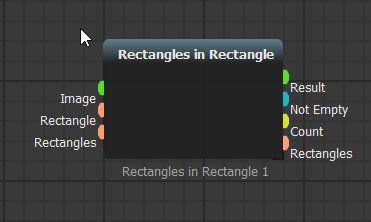
Go to the blocks bar. Under **Detections/Shapes**, open **Roi Processing** and drag **Rectangles in Rectangle** into the scenario.

![](/files/TTkjnRxWL7Jm9MgUsVM4)

<details>

<summary>Add the block with search instead</summary>

You can add blocks faster with search. Double-click an empty area and type **Rectangles**.
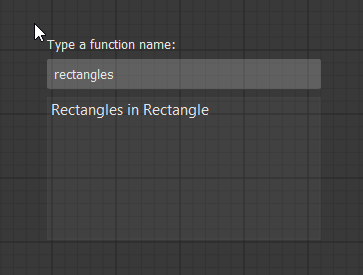
<figure><img src="/files/494SPQHtsKp5Or2VlEVw" alt="Search for Rectangles in Rectangle" width="450"><figcaption><p>Search for a block</p></figcaption></figure>

Press *Enter*. The block is created under your cursor.

<figure><img src="/files/B8KsmOoKNuTztX1tfI4s" alt="Rectangles in Rectangle block" width="450"><figcaption><p>Rectangles in Rectangle block</p></figcaption></figure>

</details>
{% endstep %}

{% step %}

### Add the hole ROI

Add one more **Image ROI Select** block. Use it to select the hole area.

Rearrange and connect the blocks as shown below.

![](/files/OD6sLHRJWVjDYsZVuHgs)

**Rectangles in Rectangle** checks whether detected rectangles are inside the selected reference area.
{% endstep %}

{% step %}

### Add visual outputs

Connect **Led Output** and **Show Image** so you can see whether a score is detected.

![Led Output and Show Image connected](/files/VlRmhWHiOE5Gxm61ZN0v)
{% endstep %}

{% step %}

### Run the finished scenario

Click <img src="/files/dEBSnHPh0rec7YKCQ54r" alt="run" data-size="line"> to run the scenario.

![Finished golf scoring detector](/files/kmQ1sPOWGskL2XX7nqKn)
{% endstep %}
{% endstepper %}

You have finished your first AugeLab Studio scenario: a golf scoring detector.

You learned how to add blocks, connect sockets, select ROIs, run a scenario, stabilize a reference image, detect an object, and display a final result.


---

# Agent Instructions: Querying This Documentation

If you need additional information that is not directly available in this page, you can query the documentation dynamically by asking a question.

Perform an HTTP GET request on the current page URL with the `ask` query parameter:

```
GET https://docs.augelab.com/getting-started/your-very-first-project/finishing-up.md?ask=<question>
```

The question should be specific, self-contained, and written in natural language.
The response will contain a direct answer to the question and relevant excerpts and sources from the documentation.

Use this mechanism when the answer is not explicitly present in the current page, you need clarification or additional context, or you want to retrieve related documentation sections.