> For the complete documentation index, see [llms.txt](https://docs.augelab.com/llms.txt). Markdown versions of documentation pages are available by appending `.md` to page URLs; this page is available as [Markdown](https://docs.augelab.com/key-features/share-your-solutions-with-community.md).
# Share Your Solutions with Community
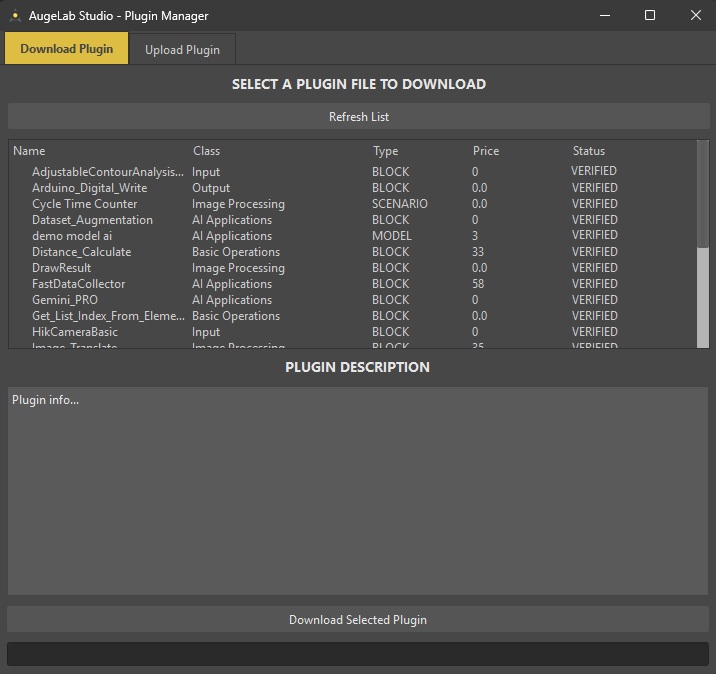
Share your solutions with Plugin Manager
## First Look
Plugin Window (Upload / Download)
The **Plugin Window** (Plugin Manager) is where you can:
* Download community solutions (blocks / models / scenarios / datasets)
* Upload your own solutions
* Publish for free (open source) or set a price
## Open the Plugin Window
* Menu: `Tools > Plugin Window`
* Shortcut: `Alt + P`
* Toolbar button: **Plugin Window**
## What Can Be Shared?
| Type | Typical file | What happens after download |
| -------- | -------------------- | --------------------------------------------------------------------- |
| Block | `.py` (custom block) | Auto-imported into **Custom Blocks** list when the download finishes. |
| Model | archive (zip/rar/7z) | Downloaded into the Studio marketplace weights folder. |
| Scenario | `.pmod` | Downloaded into the Studio marketplace scenes folder. |
| Dataset | archive (zip/rar/7z) | Downloaded into the Studio marketplace scenes folder. |
{% hint style="info" %}
The window has two tabs: **Upload Plugin** and **Download Plugin**.
{% endhint %}
## Upload a Plugin Upload steps (Upload Plugin tab)
1. Open **Upload Plugin**.
2. Select **Plugin Type**:
* `BLOCK`, `SCENARIO`, `MODEL`, or `DATASET`
3. Select **Plugin Class** (category) when available:
* `Input`, `Basic Operations`, `Output`, `Image Processing`, `AI Applications`
4. Select the file:
* **Block**: choose a block from the dropdown (from your local `custom_blocks` folder)
* **Scenario/Model/Dataset**: click **Select Plugin File**
* The picker expects an archive format (`.zip`, `.rar`, `.7z`).
5. Add a short description (how to use it, required dependencies, notes).
6. (Optional) Click **Select Screenshot Files** (max 3).
7. Choose your release style:
* Check **Publish plugin as open source** to force price = `0`
* Or set a price in **SET PLUGIN PRICE**
8. Click **Upload Selected Plugin** and monitor the progress bar/logs.
{% hint style="warning" %}
If you haven't already done so, make sure your AugeLab Studio account is associated with valid payment information. If payment information is missing, you will be prompted to update it. You can do this by visiting the [marketplace](https://marketplace.augelab.com/).
{% endhint %}
## Download Plugins Download steps (Download Plugin tab)
1. Open **Download Plugin**.
2. Click **Refresh List** to fetch the latest items.
3. Select a plugin from the table to view its details.
4. Click **Download Selected Plugin** and wait for completion.
{% hint style="info" %}
If the downloaded item is a **Block**, Studio attempts to import/register it automatically after download. If it does not appear, restart AugeLab Studio and click the refresh button in the **Custom Blocks** list.
{% endhint %}
Troubleshooting
### Tips & Troubleshooting
| Issue | What to try |
| ----------------------------------------------- | ----------------------------------------------------------------------------- |
| Upload fails immediately | Make sure you selected a file and filled the description. |
| Block download succeeded but block doesn’t show | Restart Studio, then refresh the **Custom Blocks** list. |
| “Plugin already imported” warning | Remove/backup the existing local file first, then restart and download again. |
| Download tab shows empty list | Check internet connection and click **Refresh List**. |