> For the complete documentation index, see [llms.txt](https://docs.augelab.com/llms.txt). Markdown versions of documentation pages are available by appending `.md` to page URLs; this page is available as [Markdown](https://docs.augelab.com/spanish/caracteristicas-clave/instal-custom-packages-with-package-window.md).
# Instalar paquetes de Python
Instalar dependencias en el entorno Python de Studio.
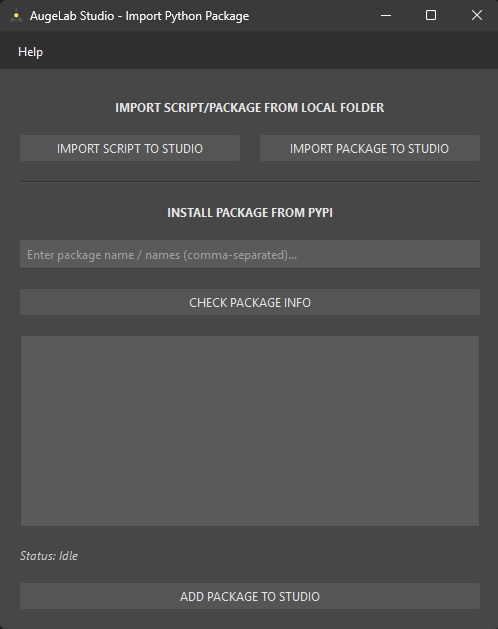
La **Import Package Window** te permite añadir dependencias de Python al mismo entorno que ejecuta:
* Designer Window custom blocks (`custom_blocks/*.py`)
* otros scripts de usuario que se ejecutan dentro de AugeLab Studio
## Primer vistazo
Import Package Window
## Abrir la ventana
* Menú: `Tools > Import Package Window`
## Hoja de referencia rápida
| Quieres… | Usar | Notas |
| ---------------------------------------------------- | ----------------------------------------------------- | -------------------------------------------------------------------------- |
| Copiar un único archivo `.py` a Studio | `IMPORT SCRIPT TO STUDIO` | Útil para pequeños helpers (p. ej., `utils.py`). |
| Copiar una carpeta local completa (paquete) a Studio | `IMPORT PACKAGE TO STUDIO` | Elige una carpeta que contenga módulos Python. |
| Instalar desde PyPI | `INSTALL PACKAGE FROM PYPI` + `ADD PACKAGE TO STUDIO` | Requiere Internet. Puedes introducir varios nombres (separados por comas). |
| Validar información de nombre/versión del paquete | `CHECK PACKAGE INFO` | Imprime metadatos en el panel de logs. |
| Abrir la ayuda integrada | `Help` (menú superior en la ventana) | Abre “Import Python Package Manual”. |
{% hint style="warning" %}
Instalar paquetes de terceros puede reducir la portabilidad. Si tu escenario necesita ejecutarse en otra máquina, instala los mismos paquetes allí también (misma versión de Python + plataforma).
{% endhint %}
Install from PyPI
1. Abre `Tools > Import Package Window`.
2. En **INSTALL PACKAGE FROM PYPI**, escribe uno o más nombres de paquetes (separados por comas).
3. Haz clic en **CHECK PACKAGE INFO** para confirmar que el paquete existe y revisar los metadatos.
4. Haz clic en **ADD PACKAGE TO STUDIO** y observa el log para ver el progreso/errores.
{% hint style="info" %}
Los paquetes se instalan en el directorio “pkgs” de Studio (el mismo entorno usado por los custom blocks de Designer).
{% endhint %}
Import a local script (.py)
1. Haz clic en **IMPORT SCRIPT TO STUDIO**.
2. Elige un archivo `.py`.
3. Confirma el mensaje de éxito.
Usa esto cuando quieras importar un módulo helper y luego hacer `import my_helper` desde tu custom block.
Import a local package (folder)
1. Haz clic en **IMPORT PACKAGE TO STUDIO**.
2. Elige una carpeta que contenga tu paquete/módulos Python.
3. Confirma el mensaje de éxito (o lee el diálogo de error).
{% hint style="info" %}
Si actualizas el paquete más tarde, vuelve a importarlo (o elimina la copia vieja primero y luego importa de nuevo).
{% endhint %}
Troubleshooting
| Problema | Qué intentar |
| --------------------------------------- | --------------------------------------------------------------------------------------------- |
| “Package not found” | Verifica el nombre en `pypi.org` y vuelve a intentar con **CHECK PACKAGE INFO**. |
| La instalación falla a mitad de proceso | Comprueba tu conexión a Internet y revisa la salida del log. |
| Un custom block falla al importar | Envuelve las importaciones opcionales en `try/except ImportError` y maneja `None` en `run()`. |