> For the complete documentation index, see [llms.txt](https://docs.augelab.com/llms.txt). Markdown versions of documentation pages are available by appending `.md` to page URLs; this page is available as [Markdown](https://docs.augelab.com/example-projects/tile-width-measurement.md).
# Tile Width Measurement
### Measuring Tile Width
Measurements can be challenging based on the context of the project. AugeLab Studio's ready to use function blocks allows easy and fast measurements on a such challenging subject.
This example will show you how to measure the width (effectively distance) of a wooden tile.
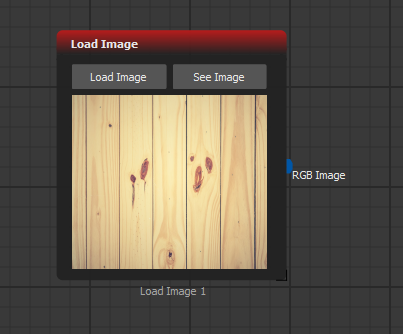
First. Use [Load Image](/function-blocks/blocks-reference/input-output/image-inputs/load-image.md) function block and load **wood.jpg** from example images folder provided by AugeLab Studio.
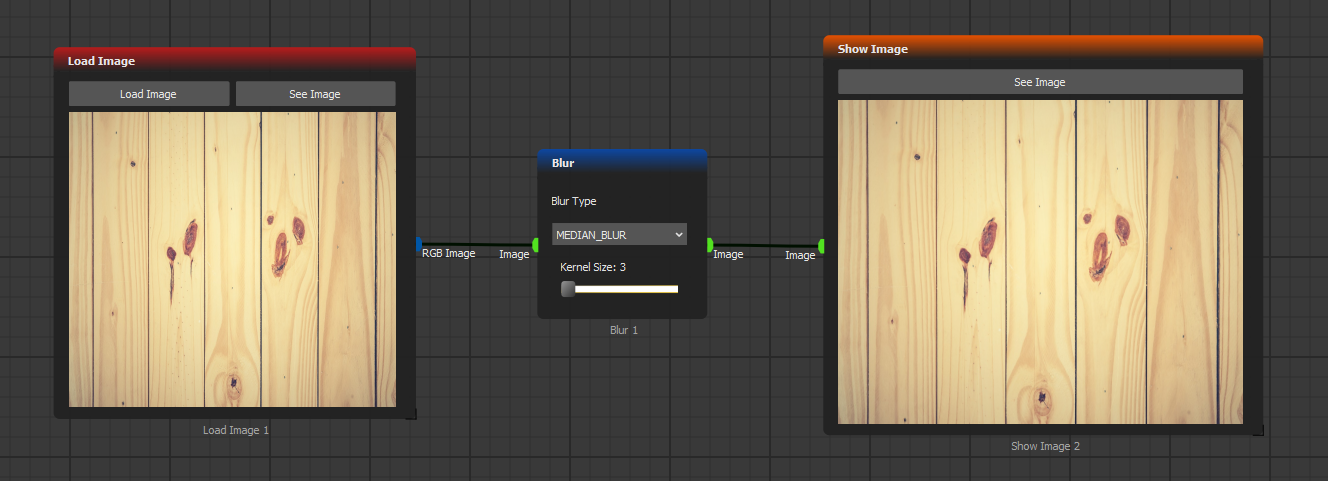
Our aim is to measure each tiles width and print them out. Next, we'll need to pre-process this image to lower noise that can be introduced by the camera or environment. For such cases, [Blur](/function-blocks/blocks-reference/image-transformations/color-filters/blur.md) function block is a very good match with **Median Blur** option. Go ahead and create the logic below:
We are keeping *Kernel Size* at 3 to keep pre-processing to minimum, since any kind of pre-processing can affect the final outcome during measurements. Next, we'll be using [Histogram on Line](/function-blocks/blocks-reference/image-transformations/analysis/histogram-on-line.md) function block.
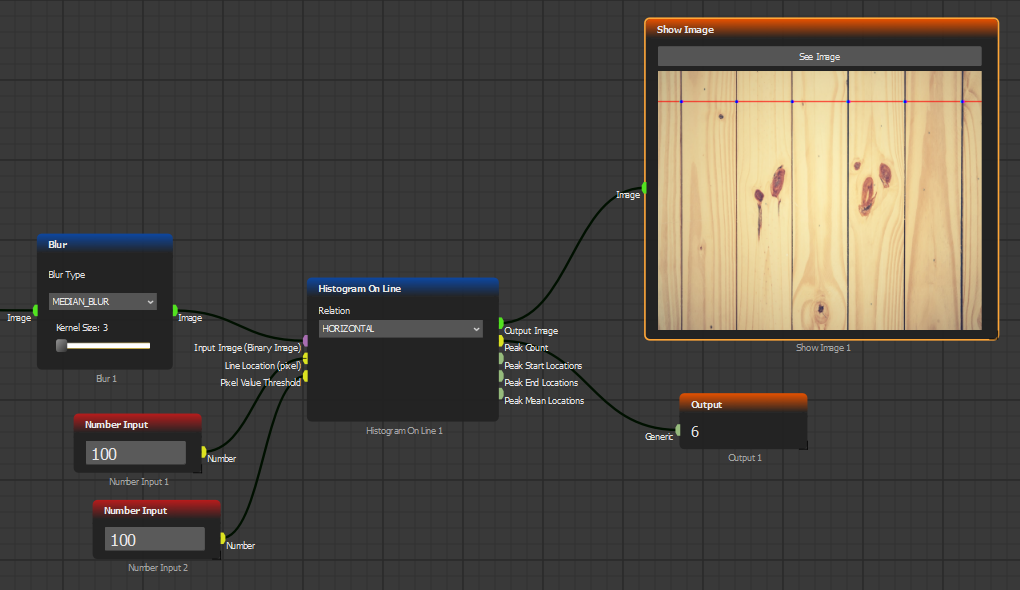
**Histogram on Line** function block automatically detects sharp edges, stores their locations as points by the given threshold and position values. By creating the logic below:
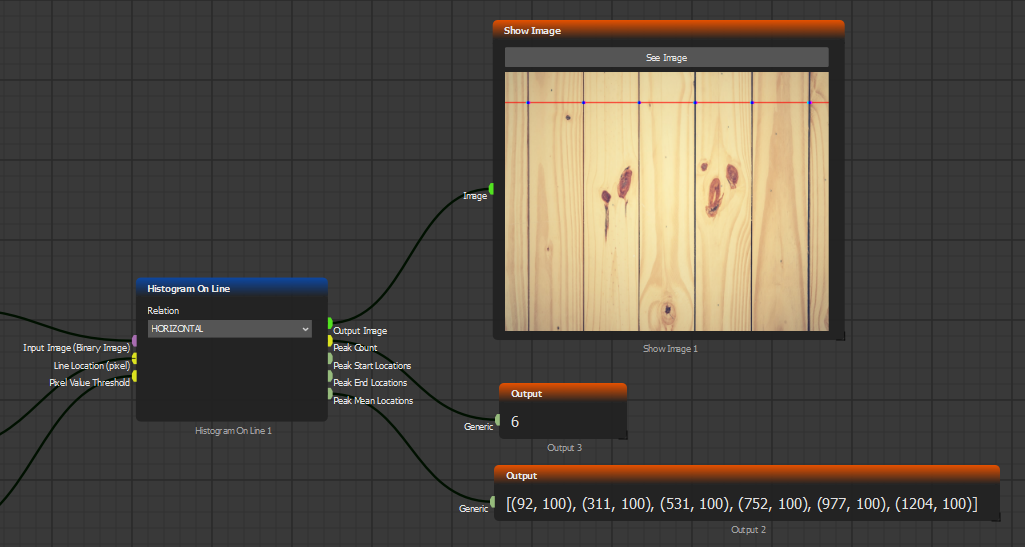
We are telling **Histogram on Line** block to calculate edges at 100th horizontal pixel position, and look for edges that exceed values over 100 (which can be between 0-255).
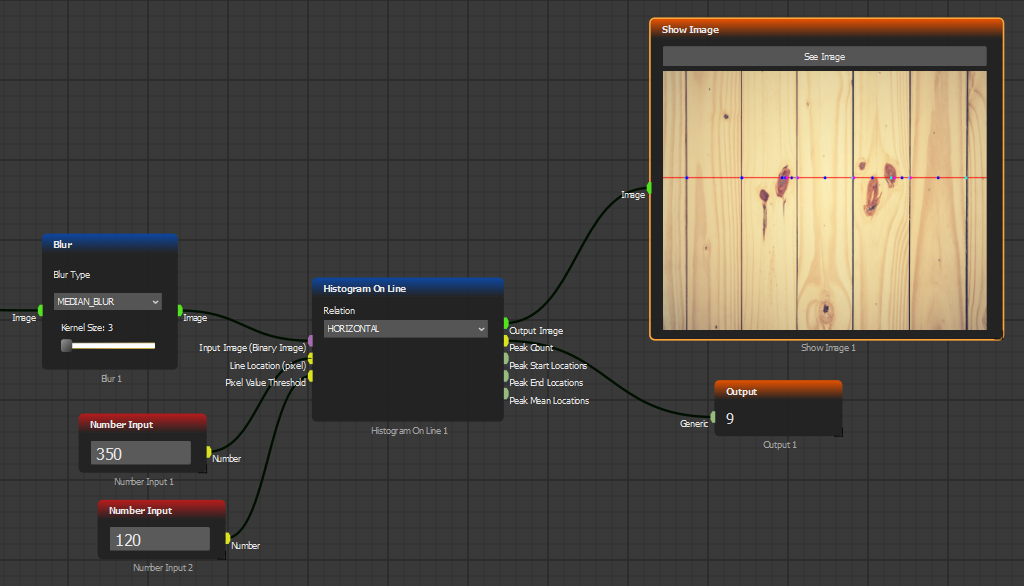
The horizontal location of detection line (second socket) is most important, since other factors can easily cause false detections. Lets provide 350 and see what happens in such scenario:
Choosing a horizontal line with more disturbances has caused false detections. Therefore, it is always recommended to choose a line that is minimally affected by noise and environment.
Since we have successfully calculated the edge locations of each tile, we can calculate the width of first tile by introducing several blocks.
First, we'll be using *Peak Mean Locations* output by the **Histogram on Line** block. This output consist of a [list](/function-blocks/sockets.md#purple-position)[ of positions](/function-blocks/sockets.md#purple-position):
Each position contains horizontal and vertical positions (x, y) of peak locations. We can calculate the distance between each point by either using [Demux](/function-blocks/blocks-reference/data-logic/logic/demux.md) block, or using [Measure Position Distance](/function-blocks/blocks-reference/image-transformations/analysis/measure-position-distance.md) function block.
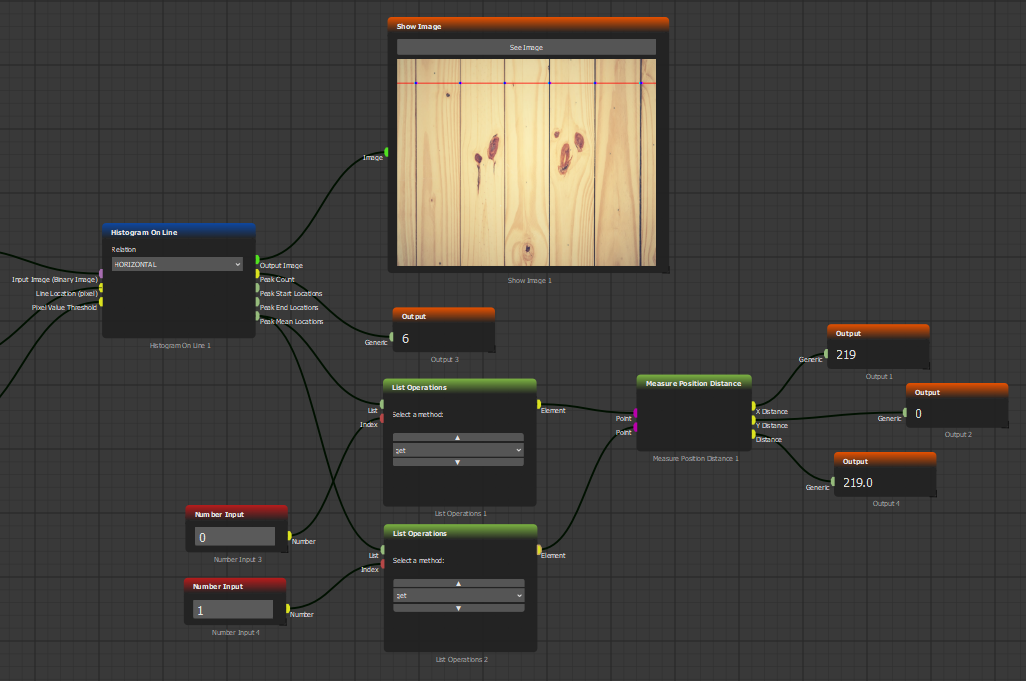
Use [List Operations](/function-blocks/blocks-reference/data-logic/data-operations/list-operations.md) block and choose **get** from the drop-down menu. Follow the logic below:
The logic above selects the first element by providing zero (0) and the second element by providing one (1). Using [Measure Position Distance](/function-blocks/blocks-reference/image-transformations/analysis/measure-position-distance.md); x-y, and Euclidean distances are calculated and presented.
You may have noticed that y distance is zero, due to all points being at the same horizontal line.
That's it! You successfully calculated the width of the first tile.
### Calculating all tile widths
Now, let's calculate the other widths by using list and batch operations.
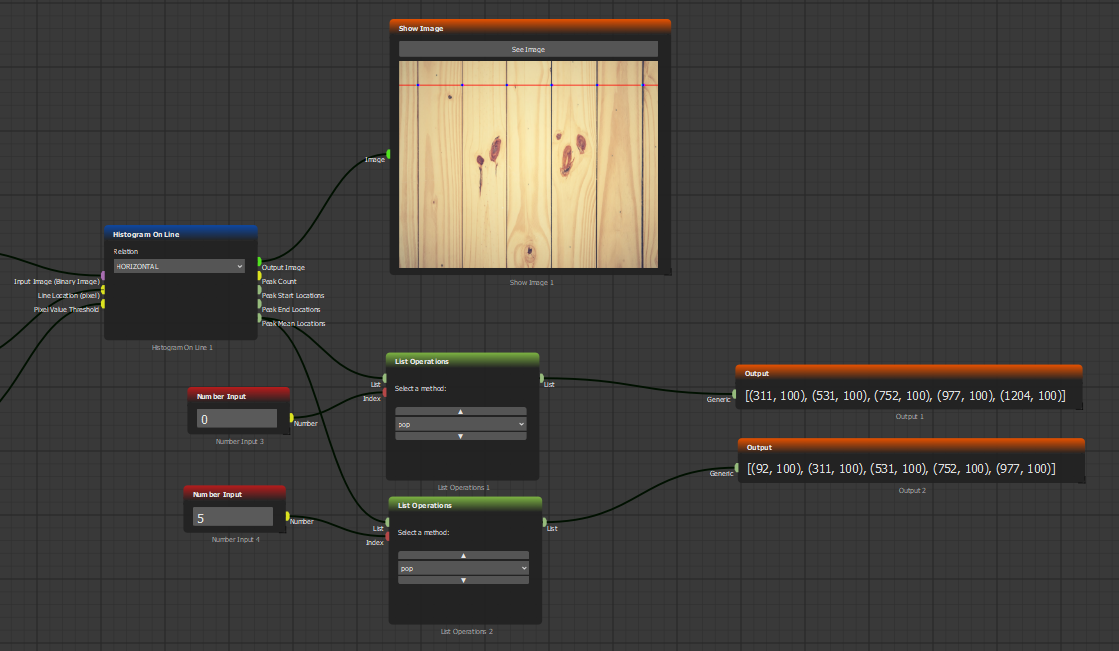
By using the same **List Operations** function block, we'll use the *pop* option from the dropbox. Pop option removes the item at given index from a list. Let's create the logic below again:
**List Operations** block first copies the provided list and then calculates the desired outcome. We created a list of peak locations without the first element, and then created another list by only removing the last one.
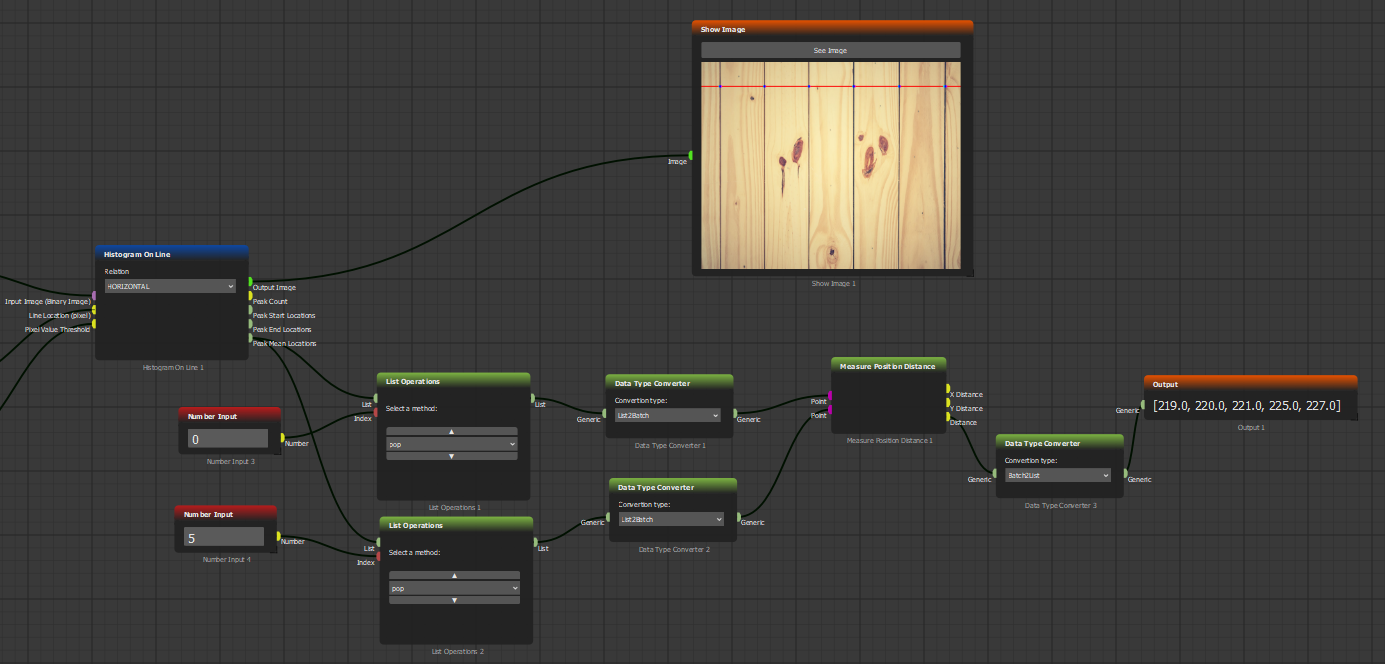
Using them with [Batch Processing](/function-blocks/blocks-reference/data-logic/flow-control/batch-processing.md) with [Data Type Converter](/function-blocks/blocks-reference/data-logic/data-operations/data-type-converter.md), we can calculate positional difference between each peak points:
It's important to use [Data Type Converter](/function-blocks/blocks-reference/data-logic/data-operations/data-type-converter.md) when dealing with Batch Processing. If a function block receives a batch, it runs in batch mode. Use *Batch2List* option from its menu to revert to normal operation mode.
That's all! You've calculated the width of all tiles!