> For the complete documentation index, see [llms.txt](https://docs.augelab.com/llms.txt). Markdown versions of documentation pages are available by appending `.md` to page URLs; this page is available as [Markdown](https://docs.augelab.com/example-projects/human-detection.md).
# Human Detection
Human detection has been a very hot topic in both computer vision and public media and falls under the same category as [Object Detection](/example-projects/object-detection.md). This short documentation will help you detect the positions on humans and count them entering an area.
{% hint style="info" %}
You'll need to install AI modules and have a computer with GPU to complete this tutorial. Please refer to the [installation guide](/augelab-studio-interface/external-features/module-downloader.md#installing-the-ai-bundle).
{% endhint %}
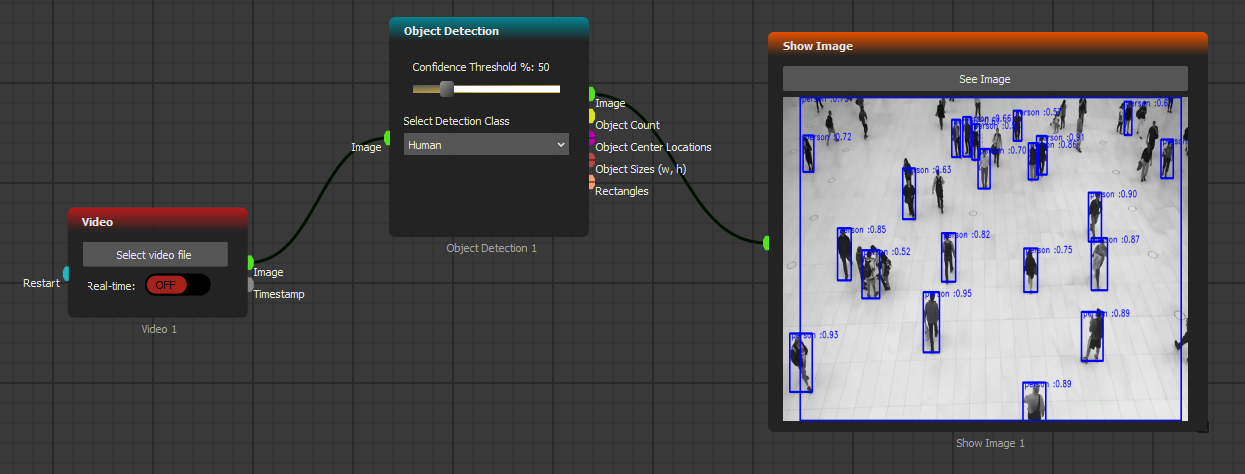
A simple human detection case can be tested with a simple scenario like below:
For our case, will be using [Video](/function-blocks/blocks-reference/input-output/image-inputs/video.md), [Object Detection](/function-blocks/blocks-reference/ai-blocks/object-detection.md) and [Show Image ](/function-blocks/blocks-reference/input-output/outputs-exports/show-image.md)blocks in AugeLab Studio. You can drag-drop these blocks from Blocks section or double click on the empty scenario and type their name.
Go ahead and click on **Select Video File** on Video block and choose **footage.mp4** on *example images* folder.
Disable *Real-time* on **Video** because we would like to process each frame with **Object Detection**.
Choose *Human* on *Object Detection* block in detection class selection box. Slide the confidence threshold to %50.
Press on F5 or Window->Run->Run One Step and you should encounter this scene:
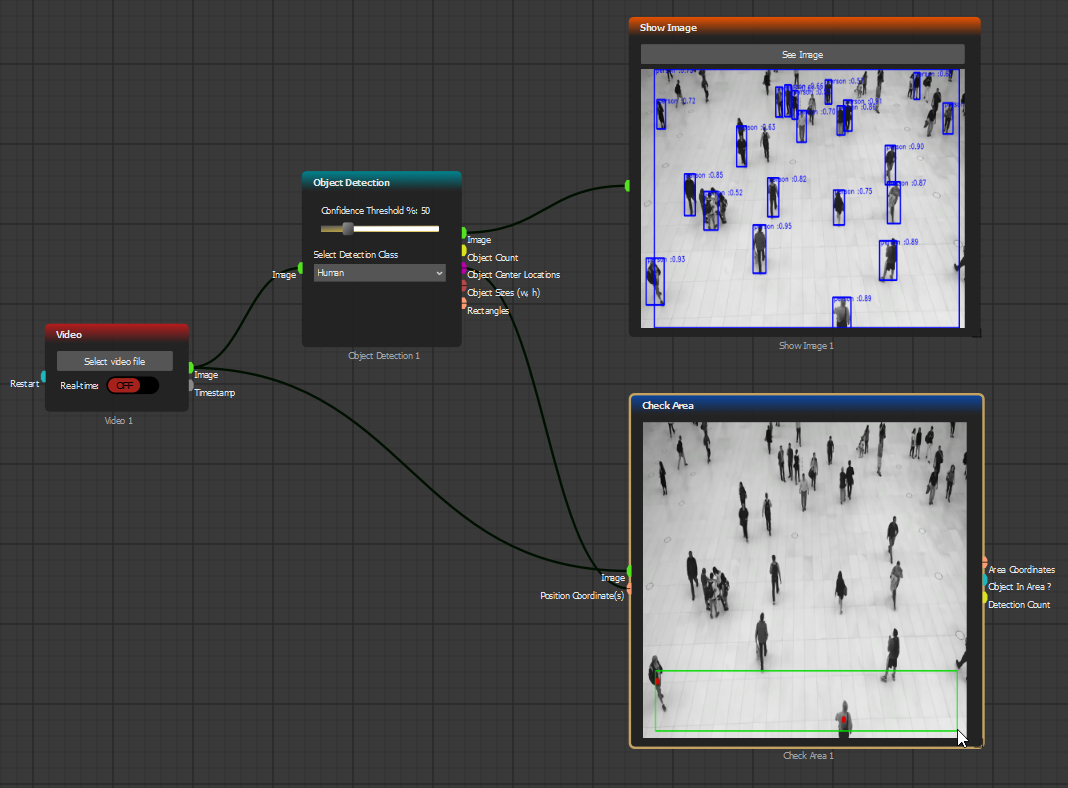
You may see there are several human detections on our video file. However, we would like to count how many people enter in or exit out of our camera perpective. To achieve that, we'll be using **Check Area** block:
Connect sockets as provided in the figure above, run the scenario for one step and draw the detection area as well in **Check Area** block.
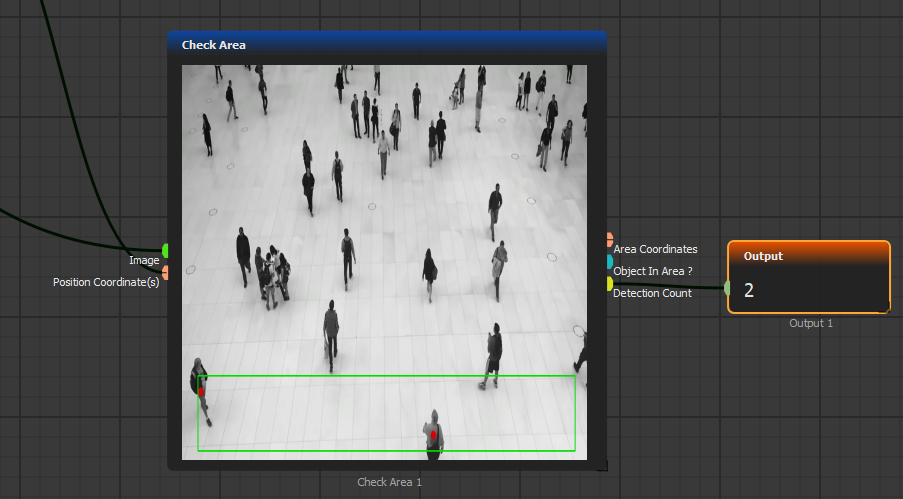
Running the current scenario will count how many objects are in the drawn rectangle:
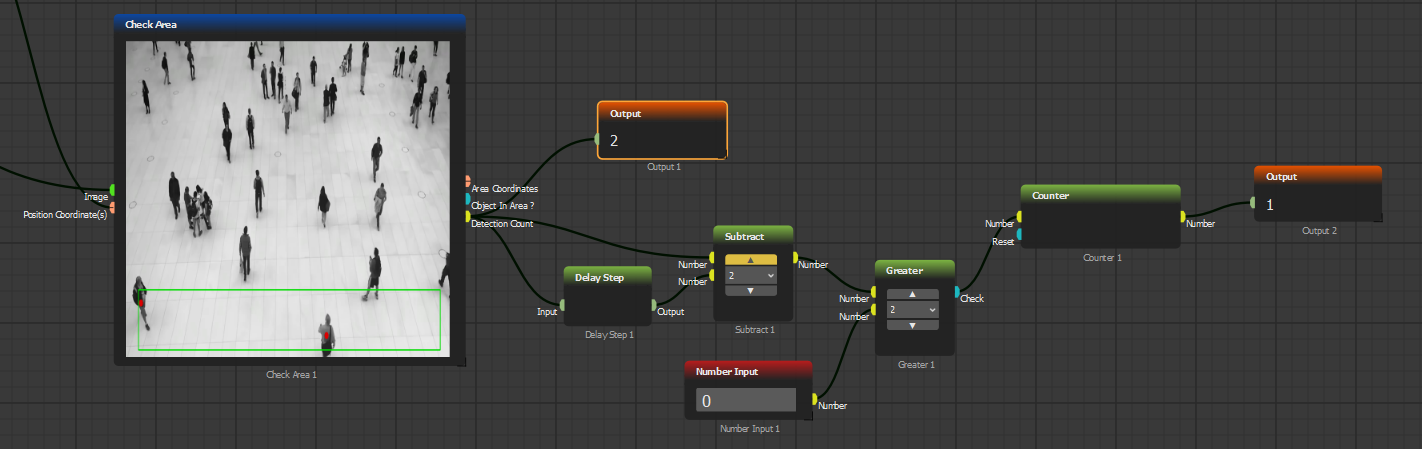
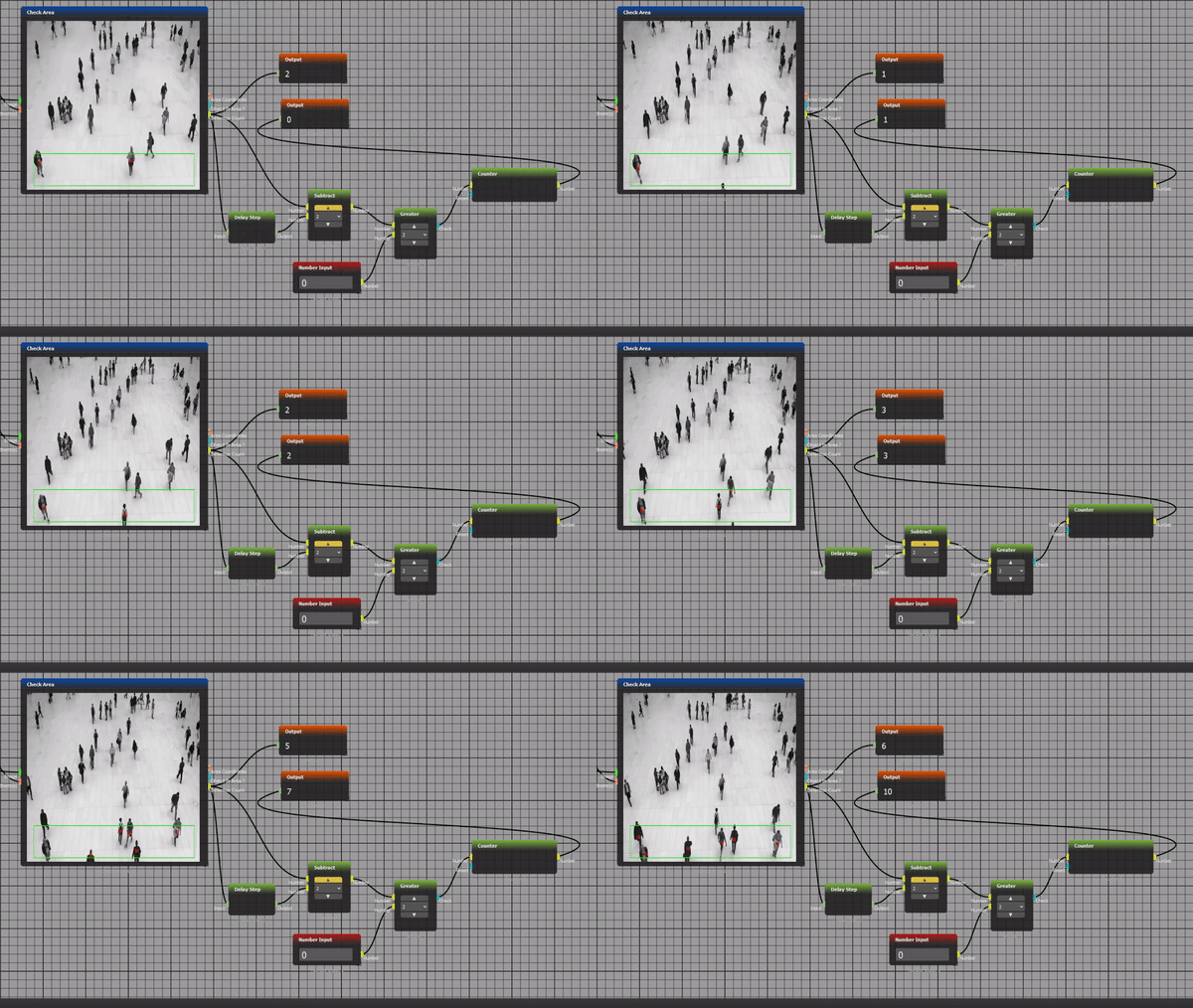
However, we will only be counting objects in this area at current time, we won't be able to hold information on how many people have passed the area. To calculate that, we need to create the logic below:
Click to enlarge
The logic above subtracts the total number of detected objects from the previous state using **Delay Step** block. If there is a difference greater than one, it adds up to it and saves it with **Counter** block.
There you have it! Now, run this scenario with **Ctrl+F5** or **Window->Run->Run** and you'll be able to count the number of people passing through a certain area:
.png?alt=media)