> For the complete documentation index, see [llms.txt](https://docs.augelab.com/llms.txt). Markdown versions of documentation pages are available by appending `.md` to page URLs; this page is available as [Markdown](https://docs.augelab.com/example-projects/circumference-measurement.md).
# Circumference Measurement
You can measure an object's several features such as width, height, and circumference using AugeLab Studio's native function blocks.
In this example, will separate an object from its background and measure its area, width, and height.
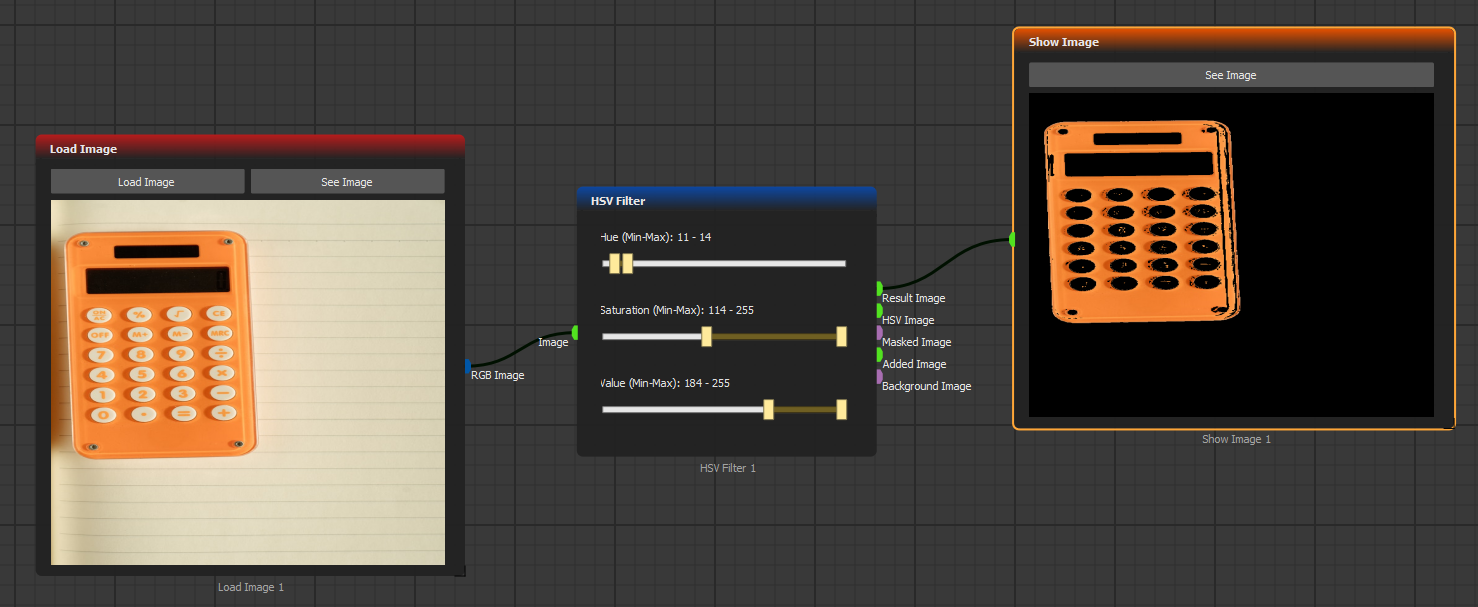
First, Use **Load Image** block and load **paper.jpg** from the example images folder.
With [**HSV Filter**](/function-blocks/blocks-reference/image-transformations/color-filters/hsv-filter.md) and adjusting Hue, Saturation, and Values we'll try to separate the calculator from the background:
Click to englarge
You may run the scenario one step everytime you adjust the sliders in **HSV Filter** block to see differen outputs. To understand what does HSV mean, refer to [HSV Filter](/function-blocks/blocks-reference/image-transformations/color-filters/hsv-filter.md) documentation.
{% hint style="info" %}
You may use [Blur](/function-blocks/blocks-reference/image-transformations/color-filters/blur.md) or other pre-processing blocks to ease out random noise from images. However, it's always better to keep preprocessing to minimum when dealing with measurements.
{% endhint %}
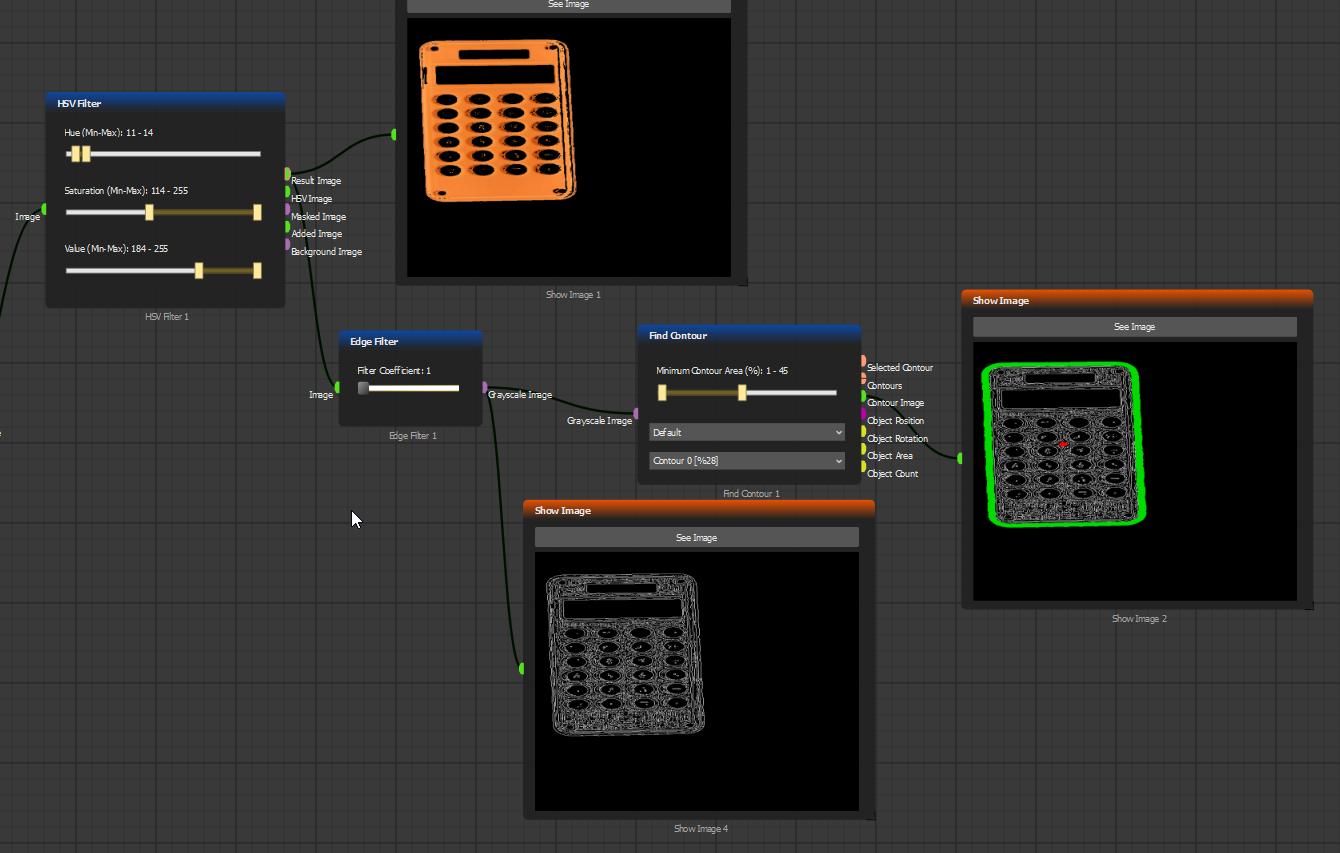
Now that have successfully separated the outline of object from the background, we can use [**Edge Filter**](/function-blocks/blocks-reference/image-transformations/color-filters/edge-filter.md) and [**Find Contour**](/function-blocks/blocks-reference/detections-shapes/shape-analysis/find-contour.md) to extract the shape of our object. Add these blocks to the scenario accordingly and tweak with slider values:
Contours are polygons that consist of several points on the 2D image space. Using contours, you can calculate their circumference, center point, angle, etc. However, the contours themselves do not contain information about their width and height since they are polygons with an unknown number of edges.
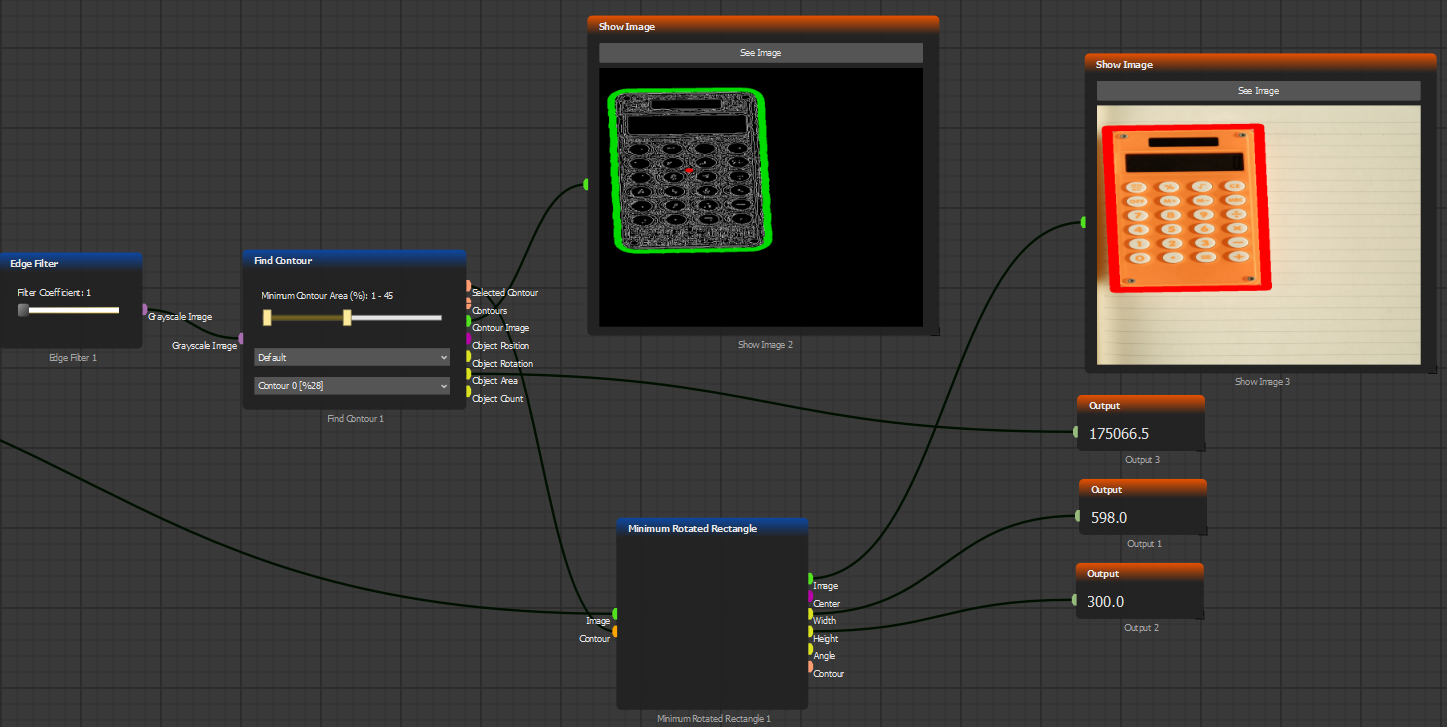
Calculating width and height would require [Minimum Rotated Rectagle](/function-blocks/blocks-reference/detections-shapes/shape-analysis/minimum-rotated-rectangle.md) block. Combining this with **Find Contour** we'll be able to calculate width, height, and area:
Calculated width, height, and area do not represent real-life units. They represent the number of pixels. In order to convert them to metric units, you'll need a constant to convert from pixel to unit length.
There you have it! This tutorial have shown you how to calculate the area, width, and height of an object by the separation method. You may check other [shape analysis](https://github.com/AugelabTech/AugeLab-Studio-Gitbook-Docs/blob/main/english/blocks/blocks-reference/imgproc2/shape_analysis/README.md) methods to work with different shapes.