> For the complete documentation index, see [llms.txt](https://docs.augelab.com/llms.txt). Markdown versions of documentation pages are available by appending `.md` to page URLs; this page is available as [Markdown](https://docs.augelab.com/key-features/train-custom-ai-models-with-training-window.md).
# Train Object Detection(YOLO) Models
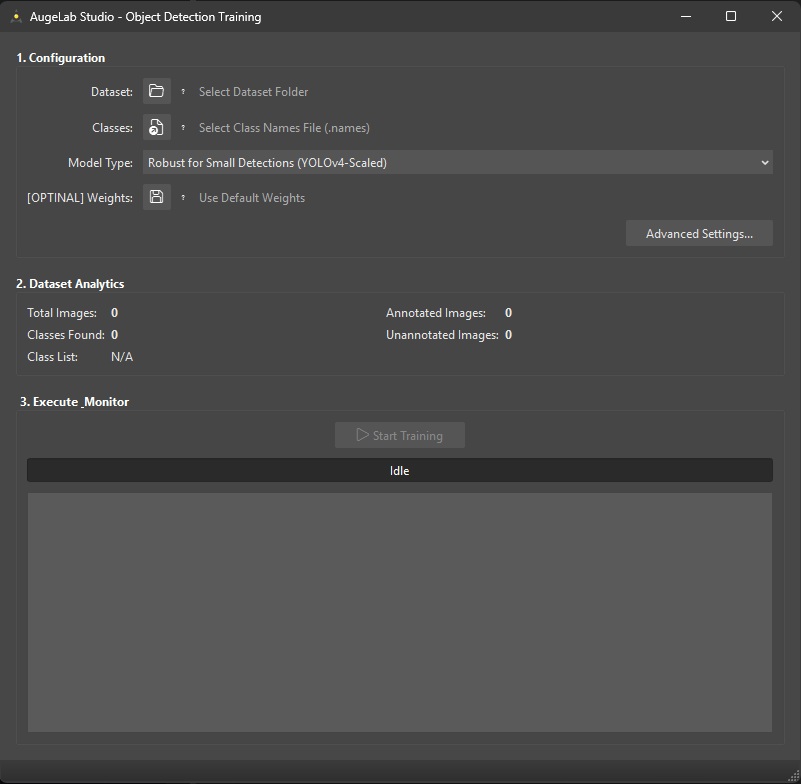
The **Object Detection Training Window** trains YOLO-based object detection models using your annotated dataset.
{% hint style="info" %}
Training is best with a compatible [Nvidia GPU](/introduction/system-requirements.md) and the AugeLab Studio AI/GPU package enabled.
If the training window is disabled or shows missing runtime/dependency errors, open the [Module Downloader Window](/augelab-studio-interface/external-features/module-downloader.md) and install the required AI tools.
{% endhint %}
## Getting Started
1. Launch AugeLab Studio.
2. Open `AI Tools` → [**Object Detection Training Window**](/key-features/train-custom-ai-models-with-training-window.md)
3. Prepare:
* a **dataset folder** and **class names file** prepared with AugeLab Studio’s [Annotation Tool](/key-features/annotate-data-for-object-detection/annotation-window-how-to.md)
* or a **dataset folder** containing images and YOLO label files (`.txt`) in the **same folder**
* a **class names file** in `.names` format (one class name per line)
{% hint style="info" %}
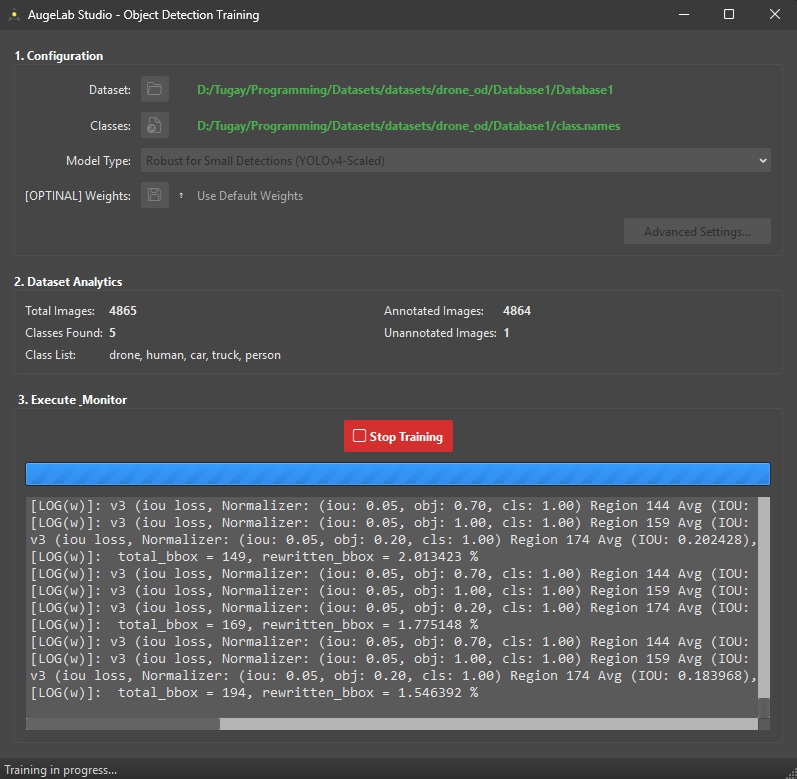
The training window scans your dataset and shows **Dataset Analytics** (total images, annotated/unannotated counts, and the class list) to help you catch mistakes early.
{% endhint %}
## 1) Configuration
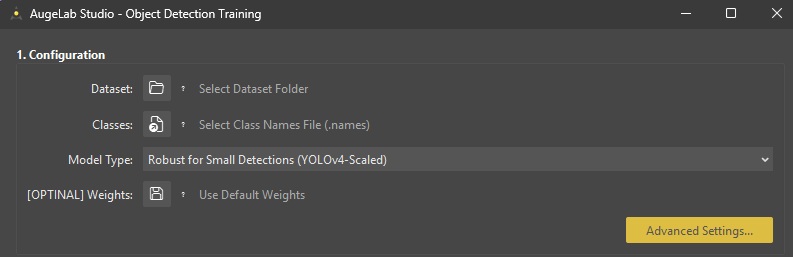
The current training window uses a simple **Configuration** panel instead of a menu-only workflow.
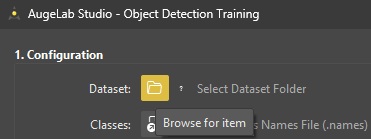
### Select Dataset Folder
Choose the folder that contains your training images.
Notes:
* Only files in this folder are used (keep your training images in one folder)
* Supported image extensions include: `.jpg`, `.jpeg`, `.png`, `.bmp`, `.tiff`, `.tif`
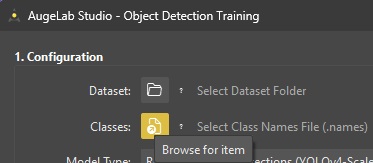
### Select Class Names File (`.names`)
Choose your class list file.
{% hint style="warning" %}
If the `.names` file is empty, the training window will treat it as an error. Make sure it contains one class name per line.
{% endhint %}
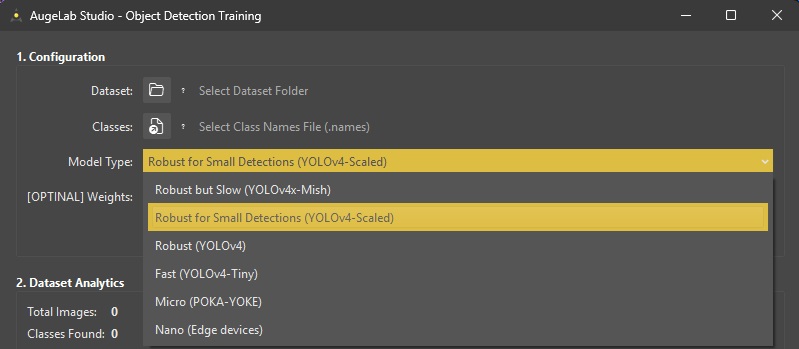
### Model Type
Choose a model variant from **Model Type**.
In general:
* **Robust Ones** variants are slower but can reach higher accuracy, YOLOv4-Scaled is a good default
* **Fast** variants train faster and are easier on low-spec PCs
* **Micro / Nano** are designed for very small / edge-device style models
### Optional: Custom Weights
You can start from custom/pretrained weights (Darknet `.weights` / backbone `.conv.*`).
Good use cases:
* Continuing a previous run
* Faster convergence on similar datasets
{% hint style="warning" %}
If you change **Model Type**, it’s safest to clear and re-select weights that match the chosen model.
{% endhint %}
## 2) Advanced Settings
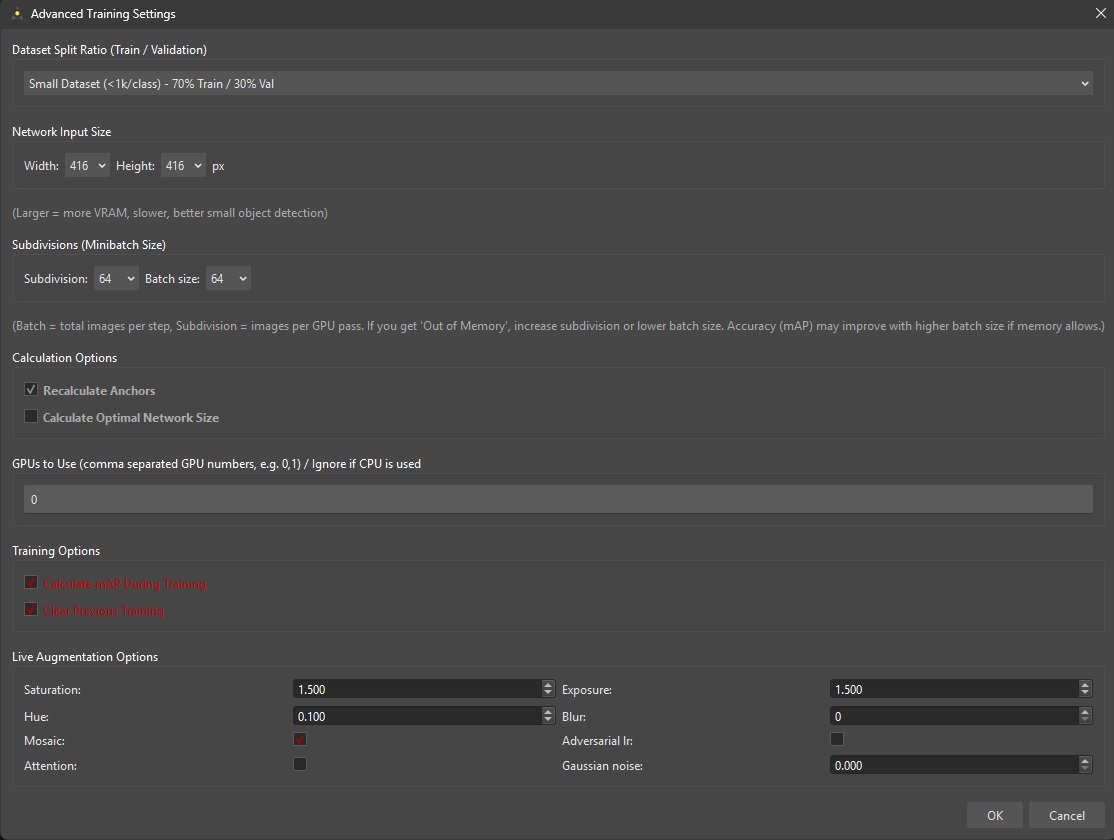
Advanced Settings allows you to tune training behavior (memory use, speed, and accuracy).
The most important settings:
* **Dataset Split Ratio (Train/Val)**: how much data is used for validation (affects mAP reporting)
* **Network Input Size (Width/Height)**: bigger can help small objects, but uses more VRAM and slows training
* **Batch Size / Subdivisions**: main knobs for GPU memory errors
* If you see “Out of Memory”, **increase subdivisions** or **decrease batch size**
* **Recalculate Anchors**: can improve results on custom datasets (recommended for new datasets)
* **Calculate Optimal Network Size**: optional auto-selection helper
* **GPUs to Use**: for multi-GPU systems (e.g., `0` or `0,1`)
* **mAP During Training**: shows accuracy progress but can slow training a bit
* **Clear Previous Training**: start fresh vs. resume
* **Live Augmentation Options**: applies on-the-fly variations during training (does not create extra files)
## 3) Start / Stop Training
Once Dataset + Classes are valid, the main button becomes active.
1. Click **Start Training**
2. Monitor:
* the **Log** area (console output)
* the **Training Chart** window (loss / mAP)
3. Click **Stop Training** to terminate the process
Training Logging
{% hint style="warning" %}
Closing the training window while training is running will terminate the training process.
{% endhint %}
## After Training
When training finishes (or you stop it), check the output directory referenced in the log/status messages.
Next steps:
* Load your trained model into your workflow (inference)
* Validate results on a holdout set or real camera footage